Blog
CAD Renders: Seven Red Flags Before You Approve

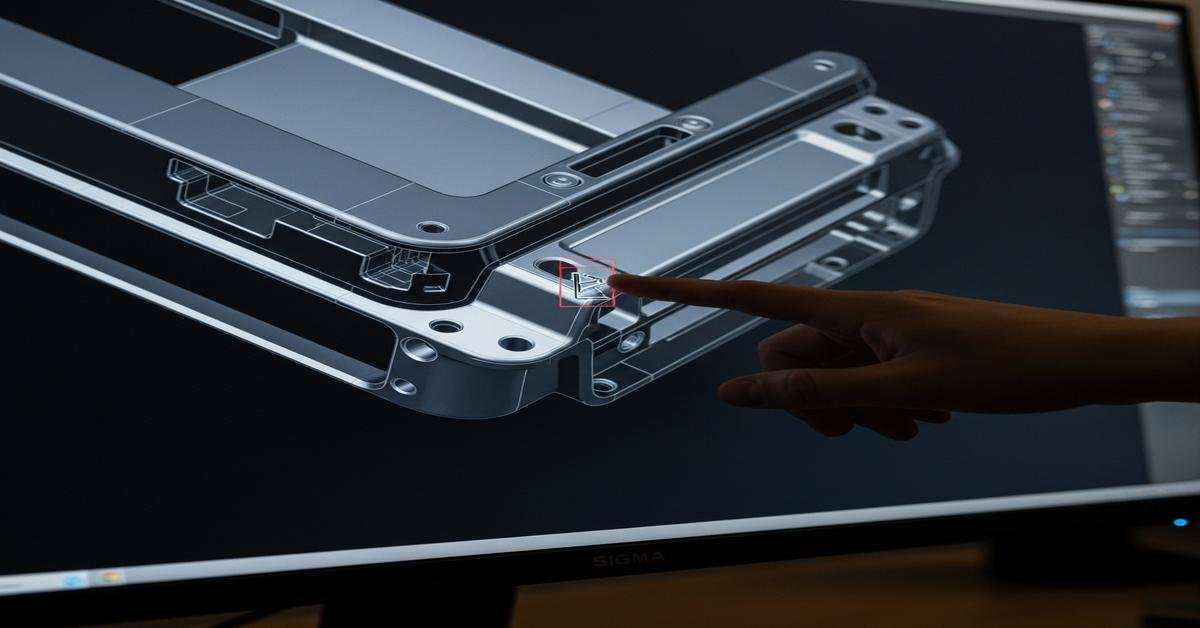
CAD renders look perfect on screen. But a beautiful render can hide problems that cost time and money in production. Before you approve a design, check the model with a jeweler’s eye. Below are seven common red flags. For each one I explain why it matters, what to measure in the file, and what to ask the CAD artist or bench jeweler to change.
1. Prongs are too thin or shaped incorrectly
Prongs determine how securely a stone sits. Thin prongs look delicate in a render but tear or break during wear and during stone setting. Ask to see the actual prong cross-section in millimetres. A rule of thumb: for 18k gold, keep prong shafts at least 0.9–1.2 mm; for platinum, aim for 1.2–1.6 mm. Tip shapes matter too. Flat or knife-edge tips can snap. Rounded tips with sufficient mass give strength and good polish lines.
Example: a 1.0 ct round diamond (≈6.5 mm) usually needs four or six prongs that each have a tip width of 0.8–1.0 mm. If a render shows needle-thin prongs or excessively tall prongs with no shoulder, ask for a cross-section and a shorter shoulder to reduce leverage during wear.
2. Stone seat size, depth, or angle doesn’t match the gem
A stone that’s modelled visually “close enough” can still be wrong. Seat depth and seat angle affect how the stone sits and how much girdle shows. Ask for the exact stone size used in the model in both carat and millimetres (for example, 1.0 ct = ~6.5 mm). Then request a cross-sectional view showing stone pavilion relative to the seat.
Why it matters: a too-shallow seat can let the stone tip out under pressure. A too-deep seat can put pressure on the girdle and cause fractures. For faceted stones, request the seat to accommodate the pavilion depth leaving a small safety margin. If the CAD file has generic round stones placed without pavilion detail, insist on accurate stone models or a physical stone blank test.
3. Shank and wall thickness are below alloy minimums
Thin walls and thin shanks save metal in the render but fail in production. Different alloys have different minimums. As a guideline, specify minimum wall thicknesses in the CAD: 18k gold: 1.2–1.5 mm at the thinnest cross-section; sterling silver: ≥1.0–1.3 mm; platinum: 1.4–1.8 mm. These values keep the ring from deforming during soldering, polishing, or everyday wear.
Also check thin areas created by engraving, pierced work, or filigree. Verify that the CAD software measures the thinnest point. If a render shows a lace-like gallery with hairline elements under 0.8 mm, ask for thickening or a structural rib to strengthen the piece.
4. Pavé and micro-settings ignore spacing and tolerance
Pavé designs fail when stones are modelled too tight or beads are too small. In CAD, stones should never touch unless you intentionally want a flush setting. Leave manufacturing tolerance: at least 0.05–0.10 mm clearance for precise 3D printing workflows, and more if the foundry’s process is rough. For bead size, check that bead shoulders are sized to carry the stone without removing too much metal.
Example: if you’re setting 1.3 mm melee diamonds, the seat hole and bead width must be sized to allow the stone to sit slightly proud for bead pushing, and beads should be a minimum of 0.6–0.8 mm across after finishing. Ask the CAD artist to provide a top and cross-section of a representative cluster area.
5. Hidden undercuts, sharp internal edges, and inaccessible areas
Renders often hide areas that are impossible to finish or set. Deep undercuts can trap investment or prevent proper polish. Sharp internal corners concentrate stress and crack during casting. Use cross-sections and section planes to inspect the inner profiles.
Ask whether any detail lies less than 1.0–1.5 mm from the inside surface or would block a rotary tool. If the design includes internal hollows, confirm they have access ports for investment and cleaning, or request they be sealed or modified. These fixes reduce the chance of miscasts and hidden defects.
6. Scale, symmetry, and alignment errors
Symmetry problems show up small in renders but are obvious on the final piece. Look for off-center stones, uneven prong spacing, and mismatched profiles on split shanks. Always measure key distances in the CAD file in millimetres: stone centerline to shank center; prong-to-prong angle; height above finger for rings.
Example: a three-stone ring where the center stone axis is 0.3 mm off will feel and look wrong when set. Tolerances for symmetry depend on design, but aim for ±0.1 mm on critical relationships for bezel edges and stone centers. If you see inconsistent symmetry in the render, ask for an axis alignment pass and a mirrored-check report.
7. Surface finish, engraving, and fine detail exceed casting or printing limits
Ultra-fine engraving or filigree can disappear in casting or be lost in the printing support removal. Check the minimum line width and depth in the CAD and compare that to the maker’s process limits. As a practical guide, avoid raised or engraved details narrower than 0.15–0.25 mm for lost-wax casting workflows, and keep shallow engraving at least 0.3 mm deep for durability.
Also confirm the intended finish. A high-polish surface needs smooth topology with proper fillets. Matte or satin finishes require changes in how the CAD model is prepared because sharp micro-faceting yields unintended light behavior on the finished part.
Final steps before you approve:
- Request accurate stone specs in mm and a cross-section of each seat.
- Ask for minimum thickness maps and highlight any areas under your limits.
- Require a 3D-printed resin sample or cast master before full production.
- Confirm alloy-specific shrinkage compensation with the manufacturer (typically ~1.5–2.5% varies by alloy and process).
- Have the bench jeweler or setter review the file for practical setting access.
Approving a CAD render is not just about how it looks. It’s about how it will be made, set, and worn. Use measurements, cross-sections, and a short physical prototype to catch these seven red flags. Fixing them in CAD is far cheaper than reworking finished pieces.